3.7 Substitute Requests
Let instructors request a sub for a class, and approve who covers it
Overview
With Substitute Requests, an instructor who can't teach a class can ask the rest of the team for cover right from Sweatpals. Other instructors are notified by text and email and can offer to cover the class. The owner then approves the substitute, and the class updates automatically.
Please note: Substitute Requests is currently available for select communities. To request for this feature to be enabled on your account, please email [email protected].
Substitute requests work for classes only. They are not available for appointments.
Turning On Substitute Requests
- Go to Settings in the left menu
- Open the Policies tab
- Turn on Substitute requests

How It Works
- The class's instructor requests a sub
- Instructors on your team are notified by text and email and can offer to cover
- The owner approves or declines the offer
- Once approved, the substitute becomes the instructor for that class date
The original instructor stays on the class until a substitute is approved.
Requesting a Sub (Instructors)
Only the instructor assigned to the class can request a sub.
- Go to Experiences
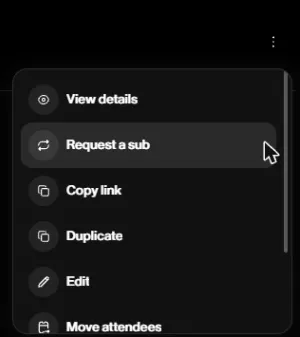
- Find the class, select the ••• menu and choose Request a sub
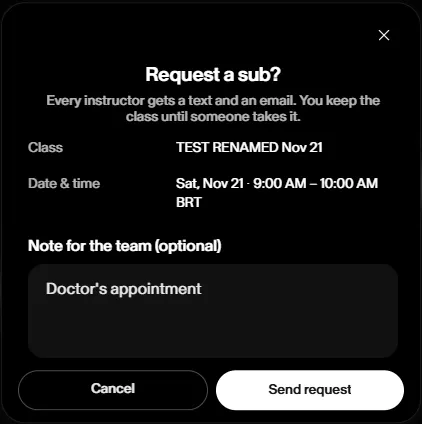
- Add a note for the team if you'd like (for example, "Doctor's appointment")
- Select Send request
The class will show a Sub requested tag, and the class page will show how many instructors were notified.
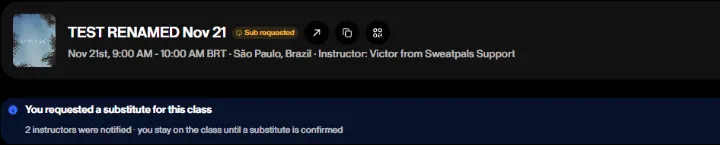
Each request covers a single class date. For recurring classes, the rest of the series keeps its original instructor.
Withdrawing a Request
If your plans change, you can cancel your request:
- Open the class from Experiences
- Select the ••• menu at the top right
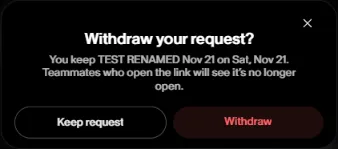
- Choose Withdraw sub request, then Withdraw
Anyone who opens the request link afterwards will see that it's no longer open, and anyone who offered to cover is notified.
Offering to Cover (Instructors)
When a teammate requests a sub, you'll get a text and an email with the class details and their note.
- Select View request in the email, or the link in the text (or open the class from Experiences)
- The banner at the top of the class page shows who needs a sub, their note, and whether you have a schedule conflict. Select Offer to cover
- Review the class details and select Offer to cover to confirm

The class will show a Sub pending approval tag, and the owner will review your offer. Another instructor may be approved first. If the owner declines your offer or the request is withdrawn, you'll get an email and your schedule stays the same.
Approving or Declining an Offer (Owners)
When an instructor requests a sub, you'll get a text and an email letting you know how many instructors were notified. Once someone offers to cover, you'll get another email asking you to approve them as the substitute.
- Select Review offer in the email, or open the class from Experiences (it will show a Sub pending approval tag)
- The banner at the top of the class page shows who offered, who requested the sub, and whether there's a schedule conflict
- Select Approve or Decline

Once you approve:
- The substitute becomes the instructor for that class date only
- The class shows a Sub for [original instructor] tag in Experiences
- The substitute and the original instructor are notified
If you decline, the instructor is told their offer wasn't approved, and their schedule stays the same.
If No One Offers
If a request is still open as the class gets closer, you'll get an email letting you know the class still needs a substitute. The original instructor stays on the class until you assign someone else.
To assign a sub yourself, follow the steps in Switching Instructors (Assigning a Sub) in 3.3 Class Operations.