🌐 8.3a Networks and Chapters
If you run several communities, for example one per city or location, Sweatpals can link them into a network. Each community becomes a chapter, and the network view lets you see all of them in one place.
Before you start
Networks are set up by our team. Reach out to us to create a network, add or remove chapters, or change who manages it. For tips on how to group your locations, see 8.3 Multiple Locations for Communities.
Switch to the network view
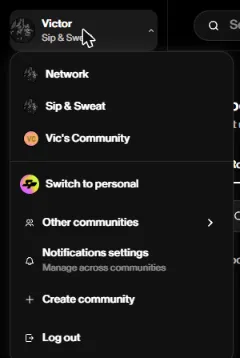
Click your community name at the top left. If you manage a network, you'll see Network at the top of the menu, followed by each of your chapters. Choose Network to see all your chapters together, or pick a chapter to manage it on its own.
What's in the network view
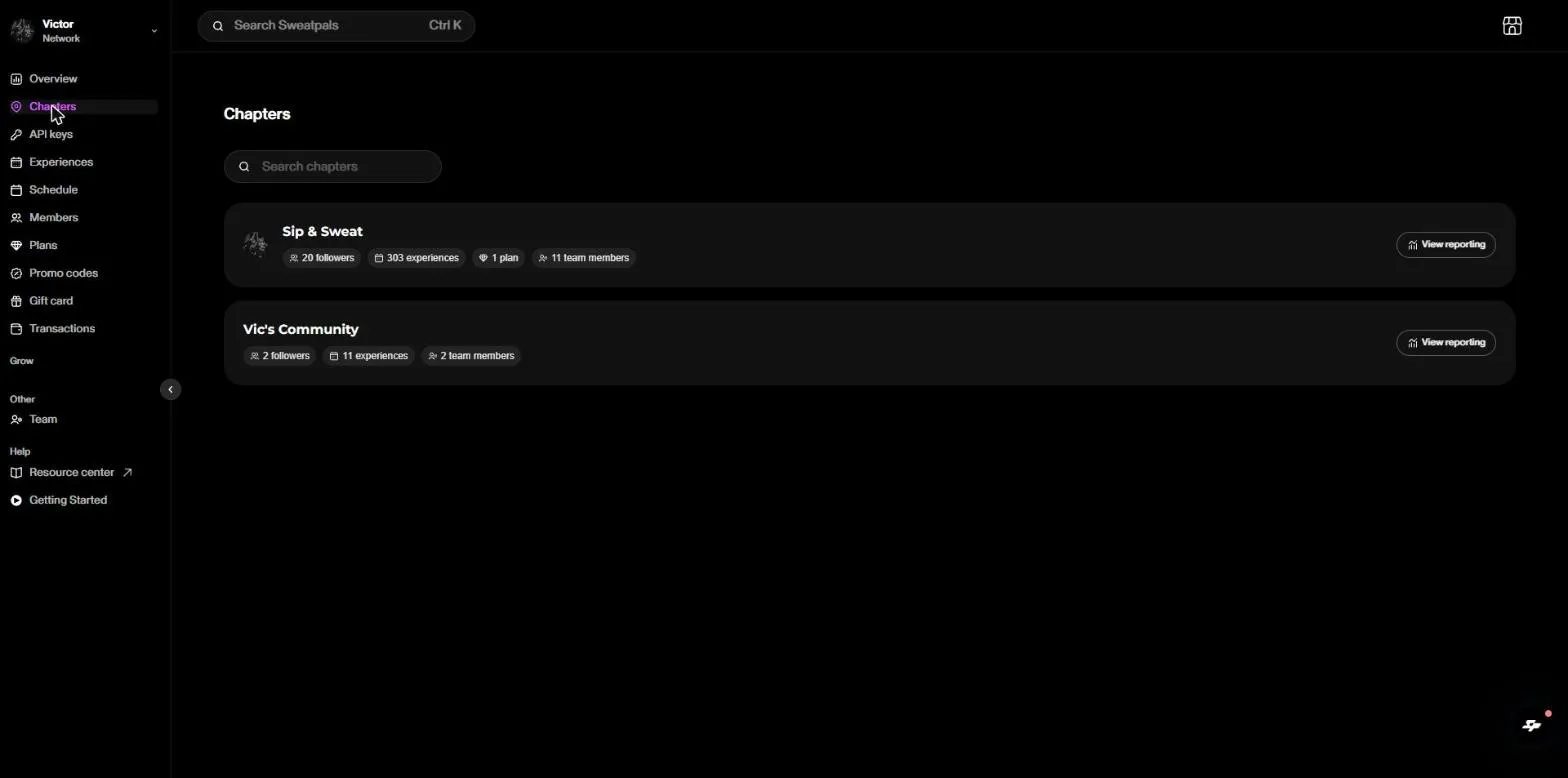
The network view has its own menu: Overview, Chapters, API keys, Experiences, Schedule, Members, Plans, Promo codes, Gift card, Transactions and Team.
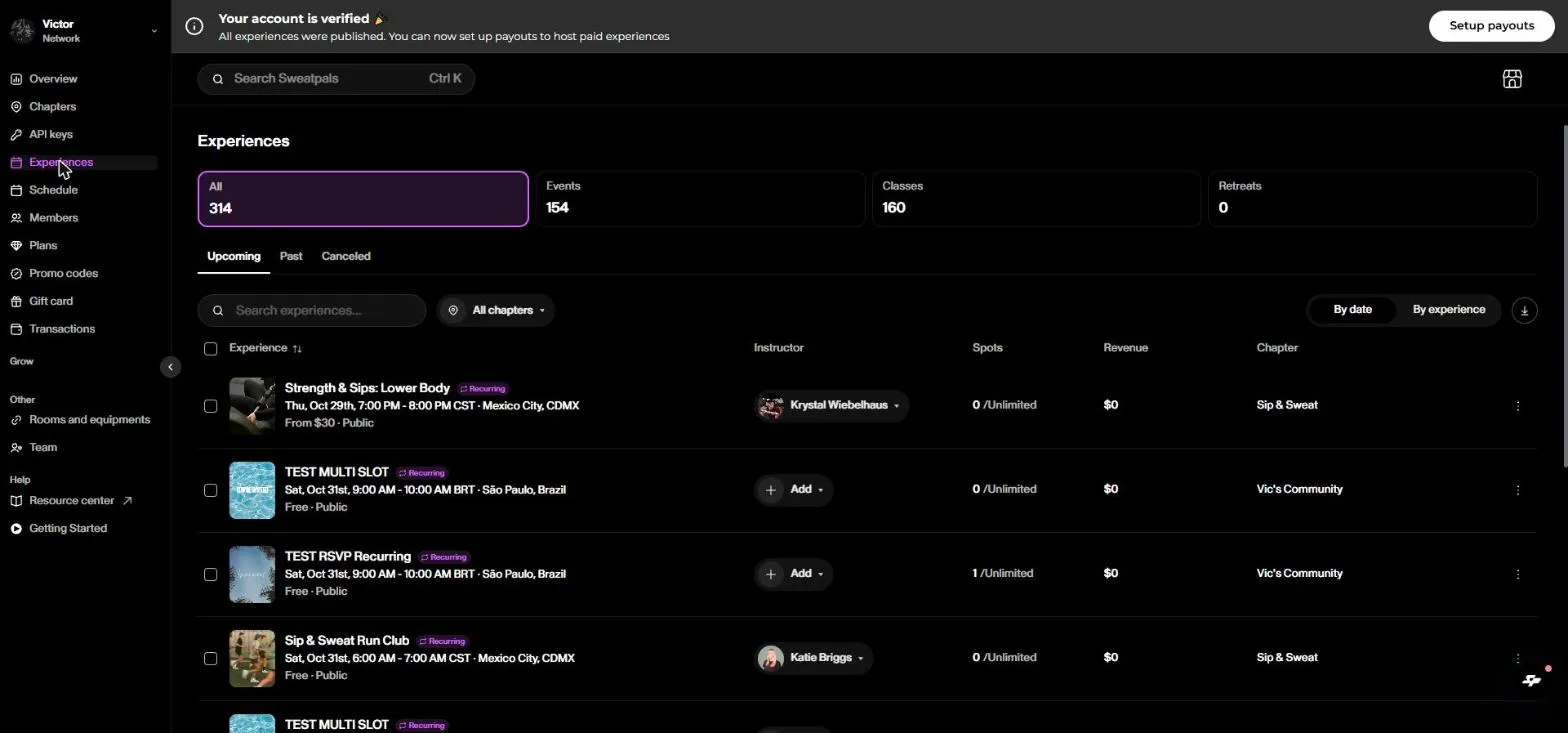
Most pages show everything from all your chapters in one list. Use the All chapters filter to narrow it down to one or more chapters, and the Chapter column to see where each item belongs.
Some tools live inside each chapter, like Appointments, Check-in, Point of Sale, Email & SMS, Settings, Integrations and Embeds. To use them, switch to that chapter from the menu at the top left.
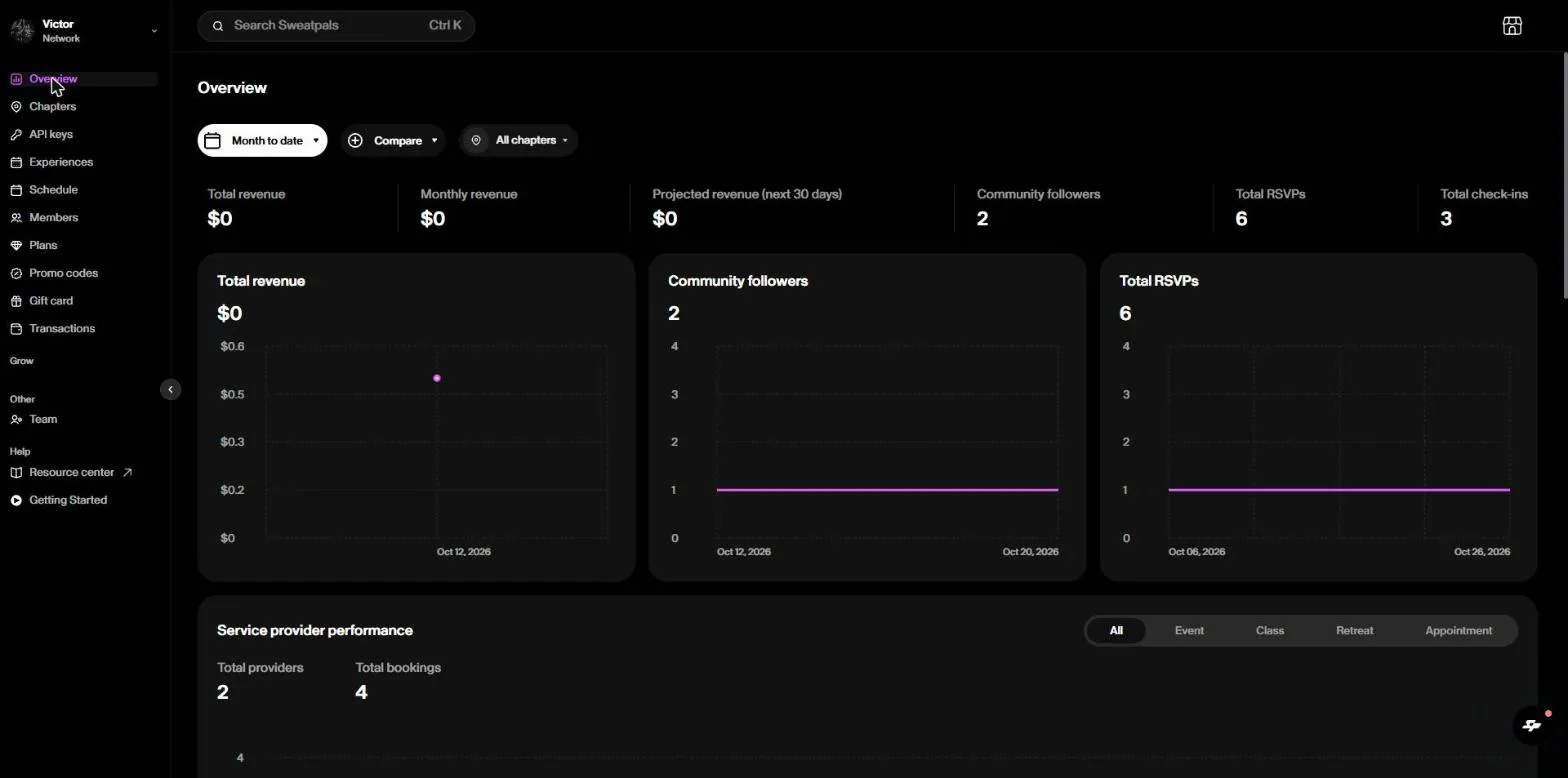
Overview
See revenue, followers, RSVPs, check-ins and service provider performance for your whole network. Change the date range, use Compare, or pick specific chapters with the All chapters filter.
Chapters
Each chapter has its own card with its followers, experiences, plans and team members. Click View reporting to open the Overview for that chapter only.
Experiences, Members and Plans
These pages list everything from all your chapters, with the All chapters filter and a Chapter column.
Good to know: plans are created inside each chapter (Plans > Create). There's no Create button in the network view. If you want a membership to be sold in or give access to more than one chapter, reach out to us.
Team
See your whole network's team in one place, with the Staff, Time Clock, Shift History, Payout Report and Payroll tabs and a Chapter column. Network owners are set by our team.
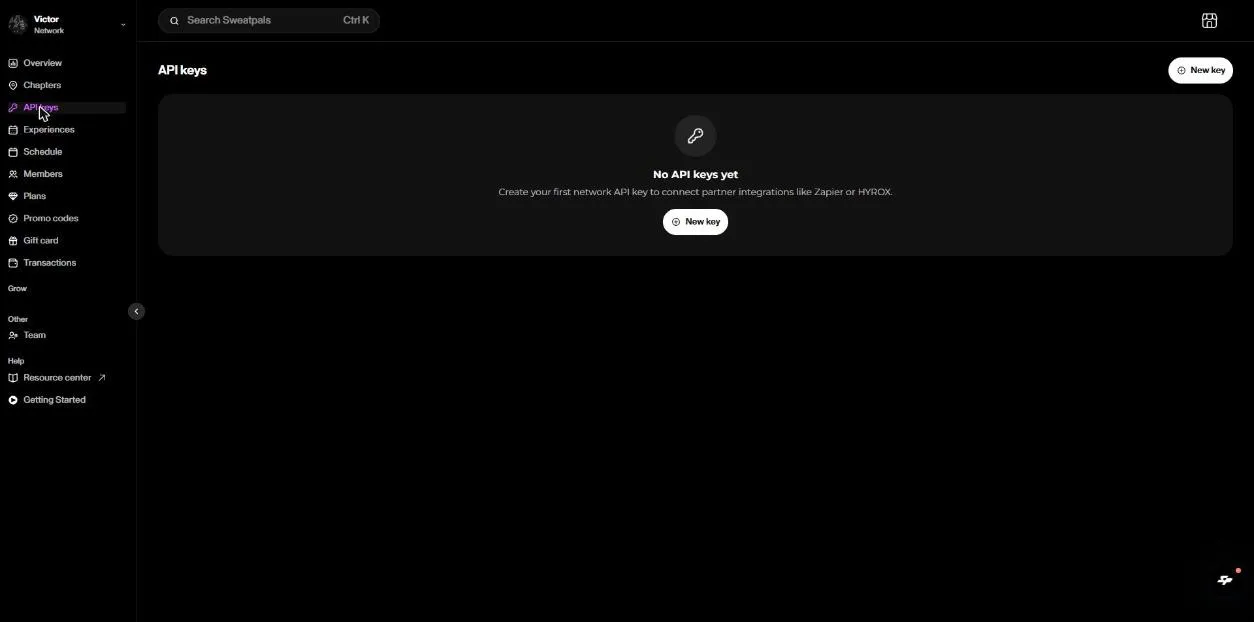
API keys
Use a network API key to connect partner integrations like Zapier or HYROX. One network key works for all your chapters, so you don't need a separate key for each community.
- Go to API keys in the network view.
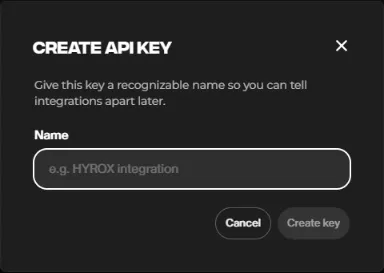
- Click New key.
- Give the key a name you'll recognize later (for example, "HYROX integration").
- Click Create key.