📄 6.7 Sales Tax Integration
Overview
Sweatpals can calculate and collect sales tax at checkout for communities in the US and Canada. Tax is calculated for each order through Stripe, added on top of your price, and shown to customers as a separate line.
You can access it by heading to Settings → Tax Settings.
Entering your tax information
- Access the Tax Settings tab by heading to your Settings page.
- Enter your Tax address. Use the address where your business is actually based, since it can affect how tax is calculated.
- Move to the Tax Registrations tab and use the Add registration button to fill in your tax registration information. You can add multiple locations if needed, and also check which registrations are active or expired.
You don't need to set a tax code on your products. Sweatpals automatically assigns the right tax code to each item based on what is being purchased.
Canadian communities: the federal Canada GST/HST registration covers GST and HST in every province, including Ontario's 13% HST. Provinces with their own sales tax need an additional registration, such as a QST registration for Quebec or a provincial registration for Manitoba.
These details can be edited later on in case any changes are needed.
After setting up your tax registrations, sales tax will be added to your experiences going forward and a tax breakdown will be shown on orders from your community:
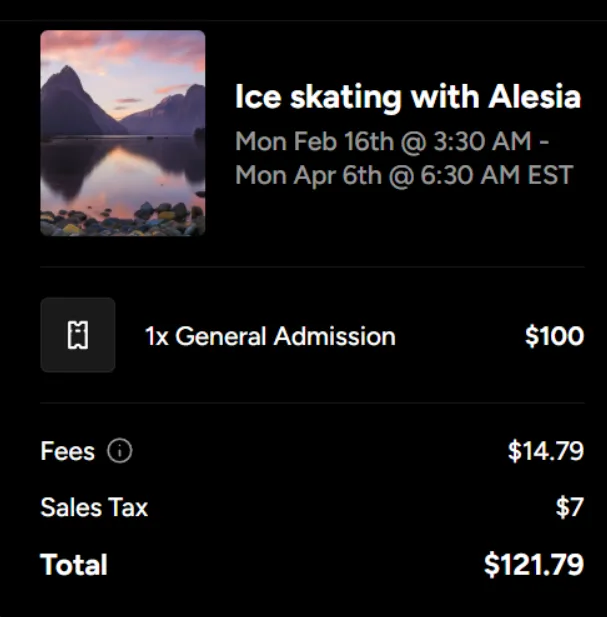
Your tax registration must match the location your event is hosted in so that taxes are applied correctly. If you host an event in a location not set in the Tax Registration tab, taxes will not be applied in that particular event.
Sales tax on POS items
When setting up new custom items in the POS page, or editing an existing one, you now have the option of selecting a specific tax code for that item.
That information is used by Stripe to determine sales-tax treatment for that particular item.
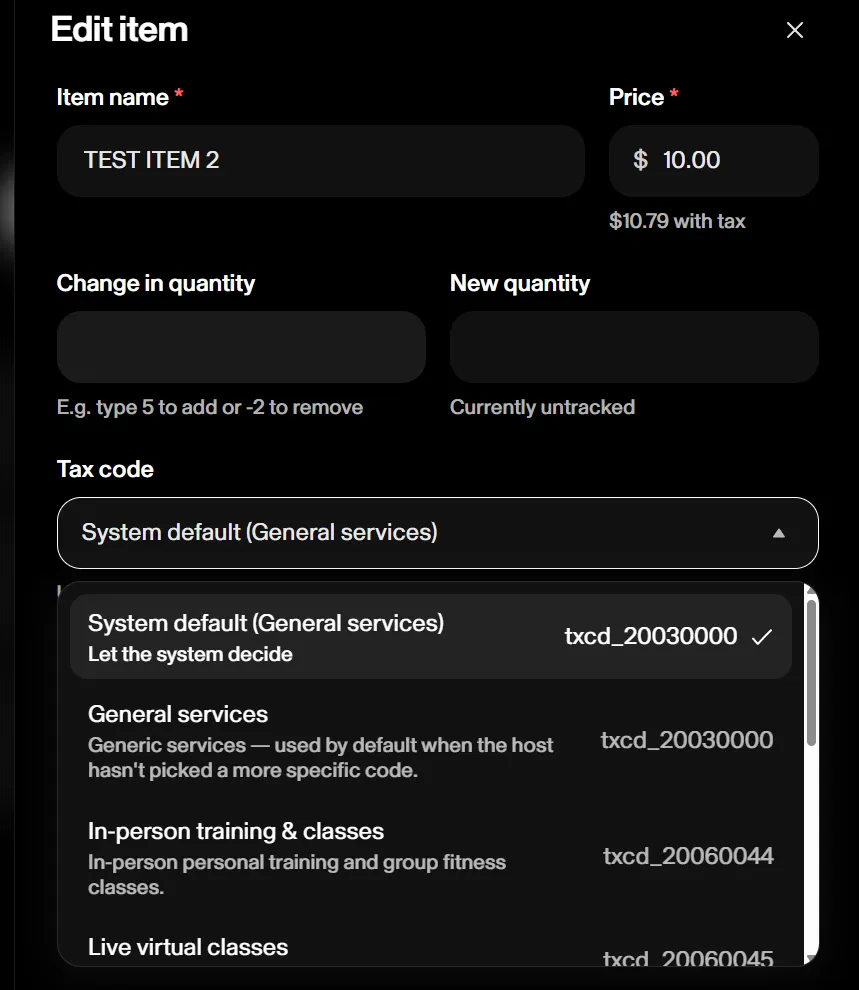
Currently, the following tax codes are selectable:
- System default (General services) - txcd_20030000
- In-person training & classes - txcd_20060044
- Live virtual classes - txcd_20060045
- On-demand workouts - txcd_20060158
- Gift cards - txcd_10502000
- Athletic merchandise - txcd_30021000
- General tangible goods - txcd_99999999
- Towel & linen services - txcd_20090012
What customers see
Tax is always shown as a separate line at checkout and in Order Details.
On email receipts, the tax line appears for tickets, memberships, and single appointment bookings. Receipts for day passes, gift cards, and other emails don't show it, but the tax is still visible in Order Details.
💡 If you previously included tax in your prices, adjust them after enabling tax collection so customers aren't charged twice.
Filing and reporting
Sweatpals calculates and collects the tax at checkout. Hosts remain responsible for filing and remitting it to the relevant tax authorities. Check with your accountant if you're unsure what applies to you.
To review the tax collected, log in to your Stripe account and open the Taxes page in the navigation menu. It lists the tax amount for each order.