🌐 9.1 Embedding Content
Overview
Embedding Sweatpals allows you to streamline your signups while keeping your members on your website. You can embed your experiences calendar or plans onto your website with ease and more customization than ever.
Embedding Content
How to embed
- Open dashboard.sweatpals.com
- Select the Embeds tab
- Customize the embeds as you see fit
- Copy & paste the code into your website management platform
Please note: Still having trouble embedding the code onto your website? Try:
- Reviewing our platform-specific instructions section below.
- Pasting the code into Claude/ChatGPT/another AI provider to reformat the code as-needed.
Customization options
When using the embed editor, you will see the following customization options:
- Widget Content: Schedule, Experience, Memberships
- Design
- Choose between Classic or Modern
- + Color Themes
- + Height & Spacing
- Layout
- Views available to members
- Default View that members land on
- Filters available to members
- Content Visibility
- Booking Behavior
- In-widget checkout -> prompts a direct to checkout pop-up (recommended for gyms/studios)
- Open experience details -> prompts a direct to listing pop-up (recommended for event organizers)
- Redirect to details page in new tab -> opens a direct to listing new tab
- Redirect to checkout in new tab -> opens a direct to checkout new tab
Platform-Specific Instructions
Squarespace
- While working within a section on Squarespace, click on Add Block.
- Scroll down the list of blocks, and select Embed.
- Click on the pencil icon, and select Code Snippet.
- Paste the code provided by the Sweatpals embed page, and hit save.
- Preview your page!
Wix
- While editing your page on Wix, click on the + icon, and navigate to the Embed Code element.
- Select Embed HTML, and paste the code provided by the Sweatpals embed page.
- In some instances, Wix may not display the embed correctly due to the code interfacing incorrectly with HTML. For these cases, we recommend taking the Sweatpals code through ChatGPT/Claude/Gemini, and ask for a more HTML-friendly version of the code.
- Scale the embed element as needed, save, then enter preview mode!
Shopify
- Access the Shopify Admin Editor
- While in Editor mode, click on any Product or item you wish to add the Sweatpals Embed Widget to.
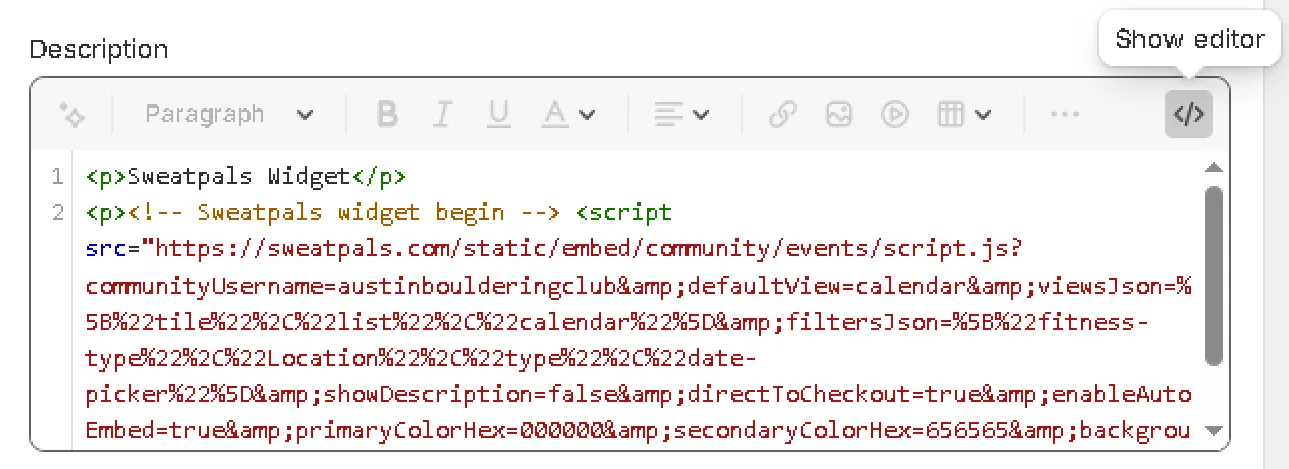
- While navigating the specific Description, click on the Show Editor button.
- Copy and paste your widget here, you can combine normal text with your widget by toggling between editor and text mode.
Wordpress (Elementor)
- Find your page in Wordpress, and select Edit with Elementor.
- Look for the Embed HTML widget, and add it to your page.
- Paste the code provided by the Sweatpals embed page in the HTML Code field.
- Similarly to Wix, Wordpress may not display the embed correctly due to the code interfacing incorrectly with HTML. For these cases, we recommend taking the Sweatpals code through ChatGPT/Claude/Gemini, and ask for a more HTML-friendly version of the code.
- Click on Preview Changes and review your embed widget!
Legacy Embed Tools
Although the new Embeds tab is the intended flow, as they have enhanced functionality, you can still use the legacy embed options when necessary.
These options are accesible when exploring the Experiences and Plans tabs:
Experience: Embedding Specific Experience(s)
- Select Experience tab
- Select a particular experience
- Toggle into Embed Code
- Customize your embed appearance, set display style, font style, & color scheme
- Click on Preview embed & once ready, copy and paste the code on your homepage
Plans: Embedding Specific Plan(s)
- Select Plans tab
- Click the Embed icon
- Customize your embed appearance, set display style, font style, & color scheme
- Click on Preview embed & once ready, copy and paste the code on your homepage
Example Embed Snippet
CSS Properties Breakdown
Here we share some popular CSS properties and examples included in the template, that will help you size/resize embeds, add them into your CSS code whenever your embed imports don't fit in your website's frame:
Height/Width
Use it to directly edit the embed's dimensions (height and width), you can combine this with scale for a more accurate sizing. You can set height and width with either fixed values (like pixels), or with % (of the total value). height: 120px; width: 100px; height: 100%; width: 80%;
Overflow
Use it when your embeds don't seem to fit within your site's dimensions (embeds being cut off or not matching a frame, too large, etc). overflow: hidden; (hides overflow, preventing it crowding other parts of the page) overflow: scroll; (hides oveflow, but adds a scroll to allow displaying all the content by sliding)
💡 Overflow needs its element to have a set size in order to work (height and width).
Transform
Instead of overflow, you can use Transform to upscale or downscale embeds when they don't properly fit within your site's dimensions transform: scale; (upscale or downscale the original content. Eg: scale(0.95), scale(1.20))
FAQ
Q: Does the content from embeds update automatically? A: Yes, if you update or change event, class or membership information, the embed widget will update automatically to reflect the new changes.
Q: Do participans leave my page when using the embed links? A: No, participants will be able to view your items and complete the purchase without leaving your homepage. The Dashboard will sync their information in Sweatpals just as if they acquired their tickets in our site.
Q: Does the Analytics Dashboard account for interactions from the embed option? A: Yes, the Dashboard accounts for interactions originating from embedded widgets, as well as interactions from Sweatpals' community and event pages. This includes page views and ticket sales.