🛡️ 8.7 Safety and Compliance
Ensure every experience on Sweatpals meets community and safety standards
Overview
Safety and trust are core to the Sweatpals platform. Hosts are responsible for maintaining safe environments, ensuring participants understand any risks, and following legal and platform policies.
Digital Waivers
Digital waivers protect both you and your attendees by clearly outlining liability terms.
Adding a Waiver
- Go to Dashboard → Events or Memberships → Edit → Advanced Settings
- Select Questionnaire or Waiver → Enable Feature.
- Choose Checkbox or Signature Field.
- Add waiver text (e.g., I acknowledge that I am participating at my own risk.)
- Save.
We recommend opting for a text waiver instead of a link, as we're unable to verify if an attendee signed a waiver through a link.
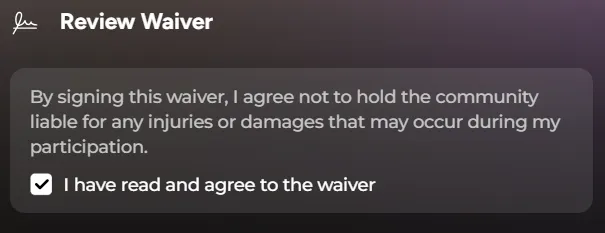
Once your waiver is added, it will create a checkbox for attendees to click on as part of the signing process.
Adding More Than One Waiver
Each event can have one waiver. If you need attendees to agree to more than one document, you can use one of these options:
Option 1: Combine them into one waiver
- In the event editor, click + Waiver under Sections and choose Text Waiver.
- Paste all your waivers into the waiver text, each one under its own title.
- Save.
Attendees sign once to agree to all of them.
Option 2: Add a required checkbox for each extra waiver
- Keep your main waiver in the Waiver section.
- Add a link to each of your other waivers in the event description, so attendees can read them before booking.
- In the event editor, click + Questionnaire under Sections, then Add question. Choose Single Checkbox as the question type and keep Required on. Add one for each extra waiver, for example: "I have read and agree to the [Waiver Name] (link in the event description)".
- Save.
Attendees confirm each waiver separately.
💡 Links added to the checkbox text show as plain text at checkout and can't be clicked, so always add them to the event description.
Confirming an Attendee's Waiver Status
Sweatpals Web
- Head to Events & Classes, then select your event.
- Select the attendee under the RSVPs tab.
- Check the waiver status under the Ticket ID field.
Sweatpals App
- Tap on the Calendar icon to view your events, then select one of them.
- Scroll down, then tap on Tickets.
- Select the attendee.
- Check the waiver status at the top.
Health & Safety Guidelines
Hosts must:
- Conduct events in safe environments (indoors or outdoors).
- Comply with local health and safety regulations.
- Provide clear pre-event information (location, intensity, requirements).
- Ensure instructors are qualified for the activities offered.
Reporting and Moderation
If you encounter inappropriate behavior, unsafe conduct, or content violations:
- Go to Dashboard → Community → Reports.
- Select the event or user in question.
- Describe the issue clearly.
- Submit report.
Sweatpals reviews reports within 48 hours and may take action including warnings, event removal, or account suspension.
Liability & Legal
- Always include clear terms in your waiver.
- If minors participate, require a parent or guardian signature.
- Keep records of attendance and waivers for at least 12 months.