🚪 9.9 Rooms and Equipment
Rooms and Equipment lets you set up the physical spaces and gear your services use, so they can never be double booked. Once set up, you can choose which appointments can use each room, add prep and breakdown time around each booking, require equipment for an appointment, and see which room each booking is in right on your Schedule.
You'll find it in your dashboard under Other > Rooms and equipments.
Create a room
- Go to Rooms and equipments and stay on the Rooms tab.
- Click Create.
- Enter a Room name (for example, "Studio A" or "Recovery Room").
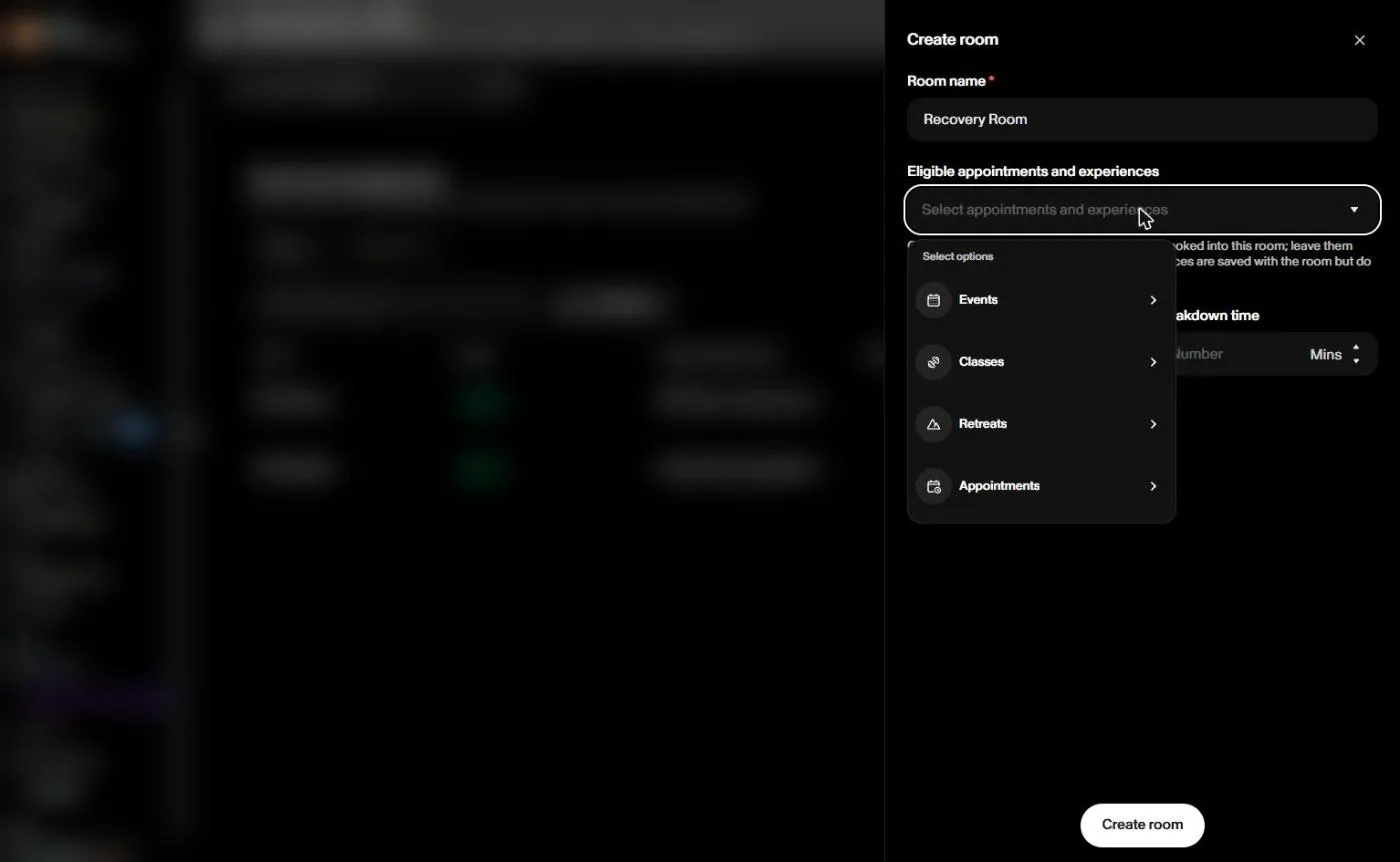
- Under Eligible appointments and experiences, pick what can use this room. You can browse by Events, Classes, Retreats and Appointments.
- Optionally, add a Prep time and a Breakdown time in minutes. This is extra time the room is held before and after each appointment, for cleaning or setup.
- Click Create room.
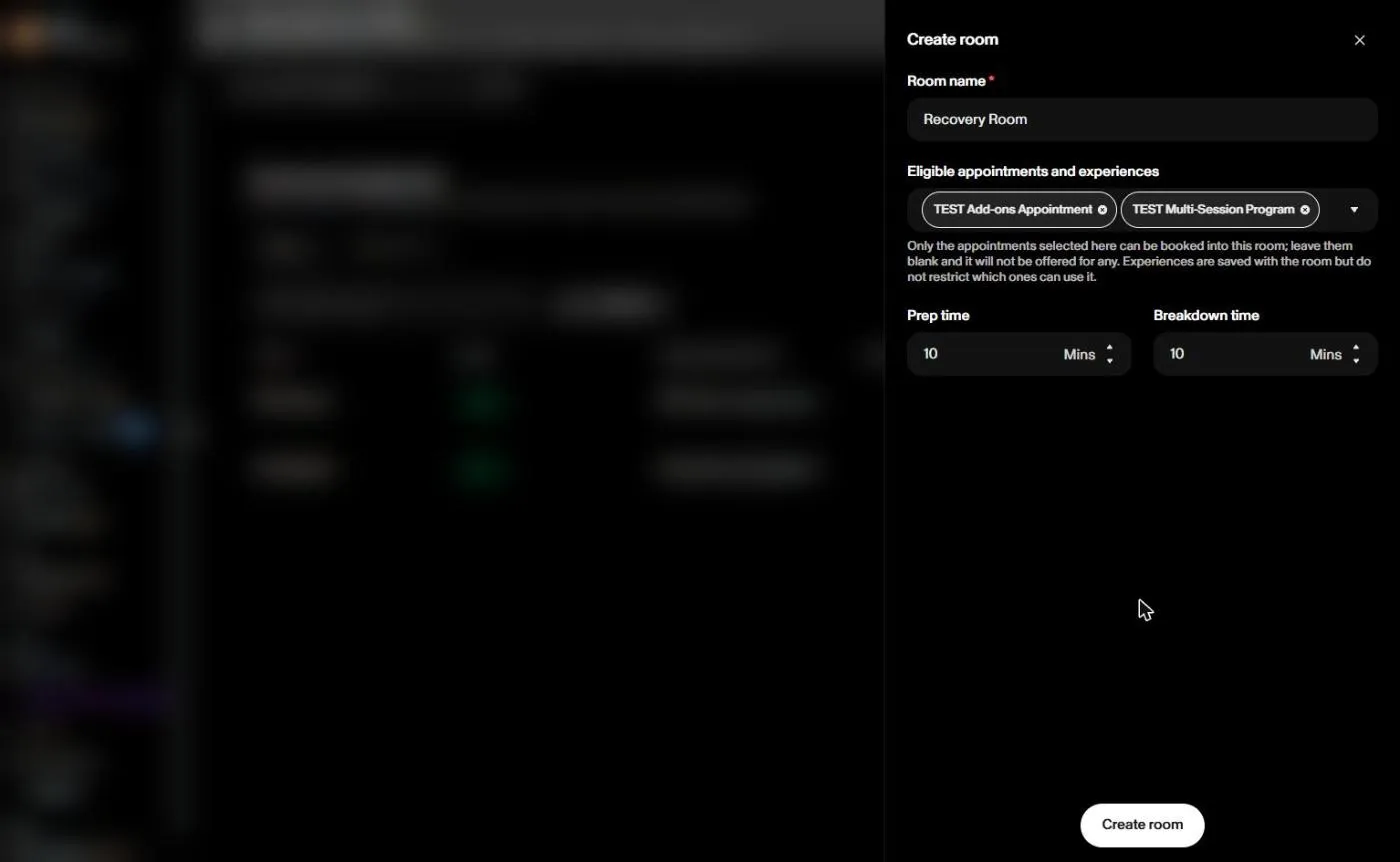
Good to know: only the appointments you select here can be booked into this room. If you leave the list blank, the room won't be offered for any appointment. Experiences you select are saved with the room, but they don't restrict which experiences can use it.
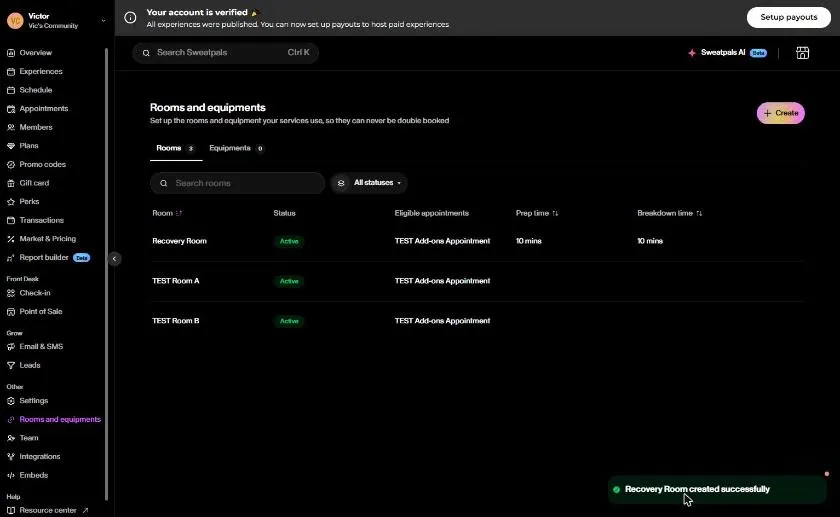
Your new room shows up in the list with its status, eligible appointments, prep time and breakdown time.
Create equipment
- Go to Rooms and equipments and open the Equipments tab.
- Click Create.
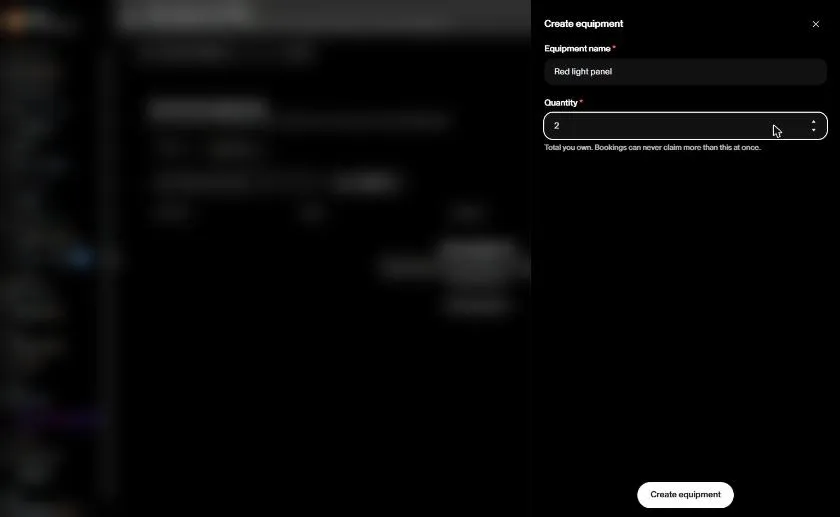
- Enter an Equipment name (for example, "Red light panel").
- Enter the Quantity, which is the total number of units you own. Bookings can never claim more than this at once.
- Click Create equipment.
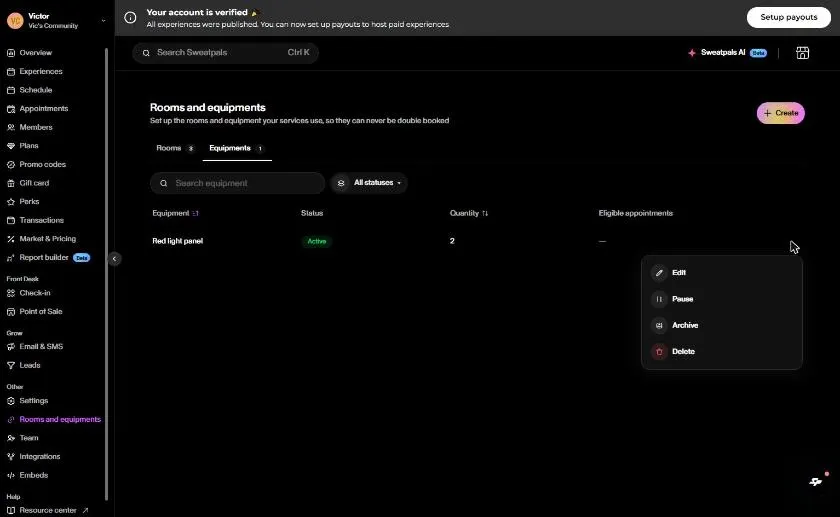
Edit, pause, archive or delete
Click the three dots on any room or equipment row to Edit, Pause, Archive or Delete it.
Link rooms and equipment to an appointment
You can also manage this from the appointment itself:
- Go to Appointments, click the three dots next to the appointment and choose Edit.
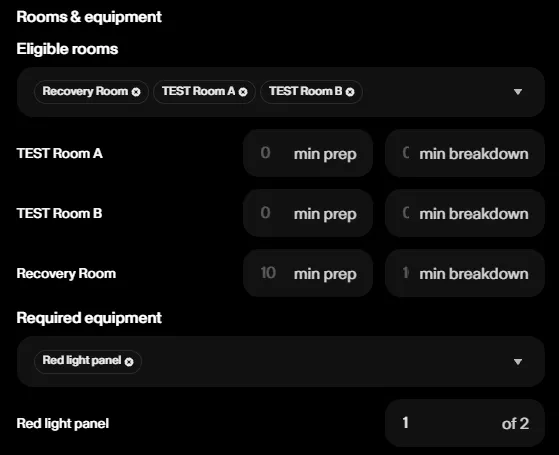
- In the Rooms & equipment section, use Eligible rooms to choose which rooms this appointment can be booked into. Rooms you pick here stay in sync with the room's own eligible list.
- Set the min prep and min breakdown for each room, if needed.
- Under Required equipment, pick the equipment this appointment needs and how many units each booking uses (for example, 1 of 2).
- Click Update.
Choose a room when you book a client
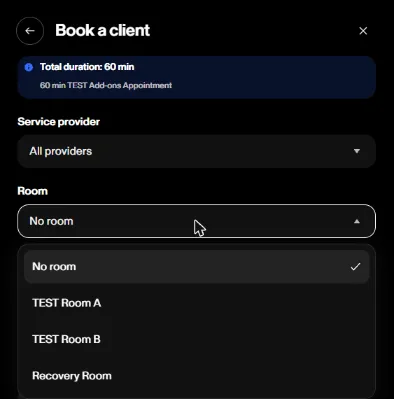
When you book a client from the dashboard (Book a client), you'll see a Room field after you pick the client. Choose one of the rooms available for that appointment, or leave it as No room.
The room then shows on the booking in the appointment's Bookings list.
Add a room to an experience
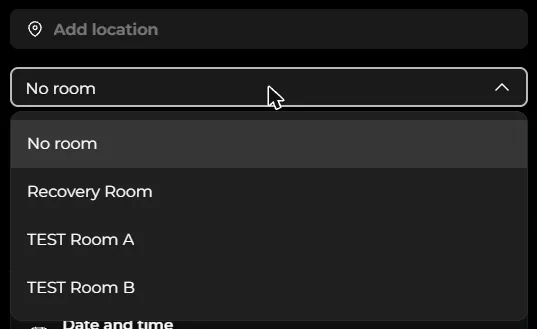
When you create or edit an event, class or retreat, you'll see a Room field right below the location. Pick the room where it takes place, or leave it as No room.
See rooms on your Schedule
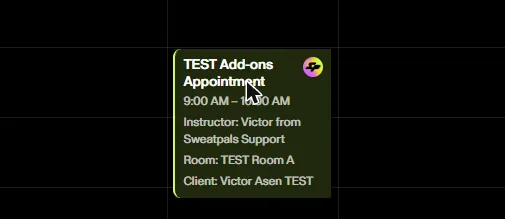
On your Schedule, hover over a booking to see its details, including the Room it's in.
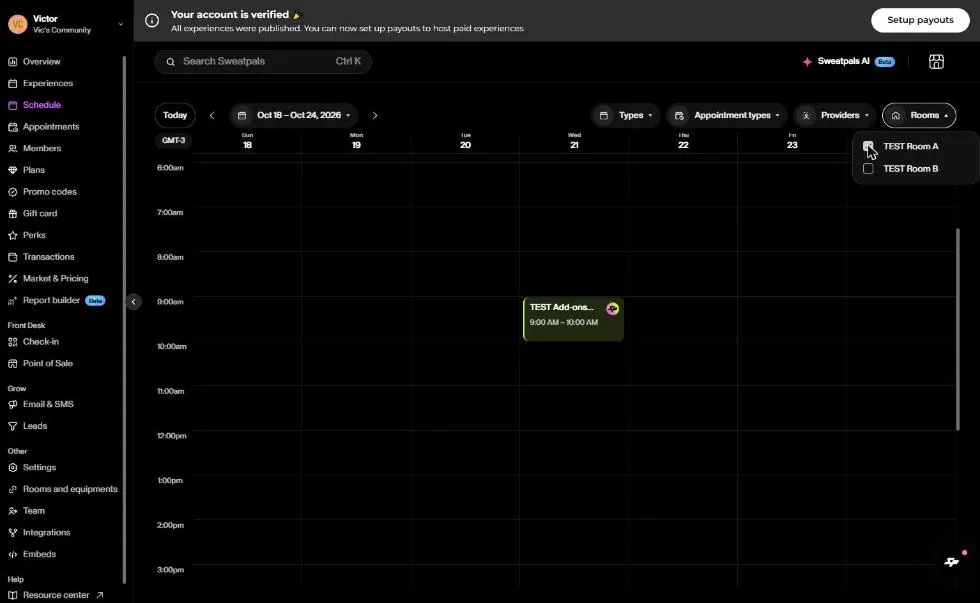
Use the Rooms filter at the top of the Schedule to only show what's happening in one or more rooms. You can combine it with the other filters, like Types, Appointment types and Providers.