5.6 Day Passes
A day pass lets Pals drop in to your gym or space during a set time window, like 8 to 10 AM, without a membership or a class booking. They buy the pass, get a QR code and show it at the front desk.
Good for: filling quiet, off-peak hours with a lower price, and letting new people try your space before they buy a membership.
💡 Day passes are available for every community. You'll find them under Plans in your dashboard.
Create a day pass
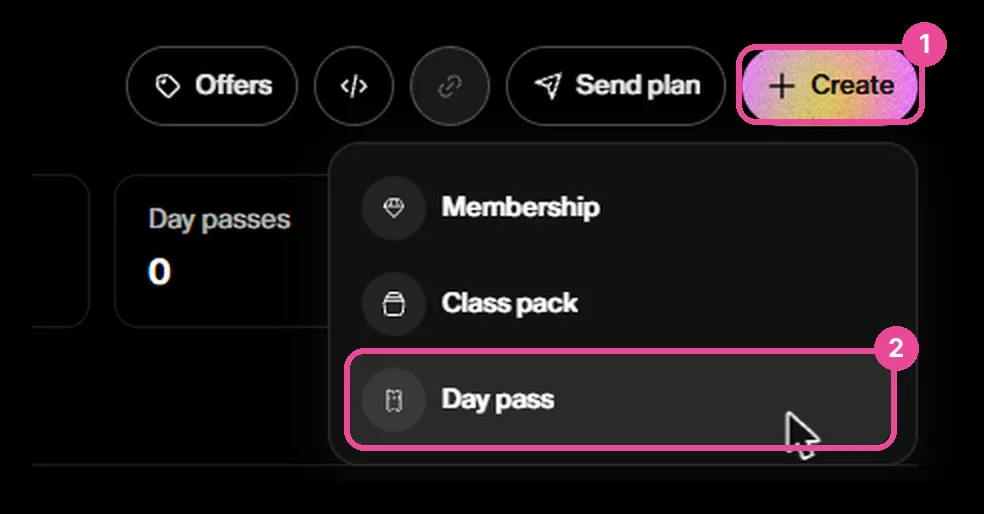
Go to Plans, click Create and choose Day pass. As you fill in the form, the Preview card on the right shows what Pals will see.
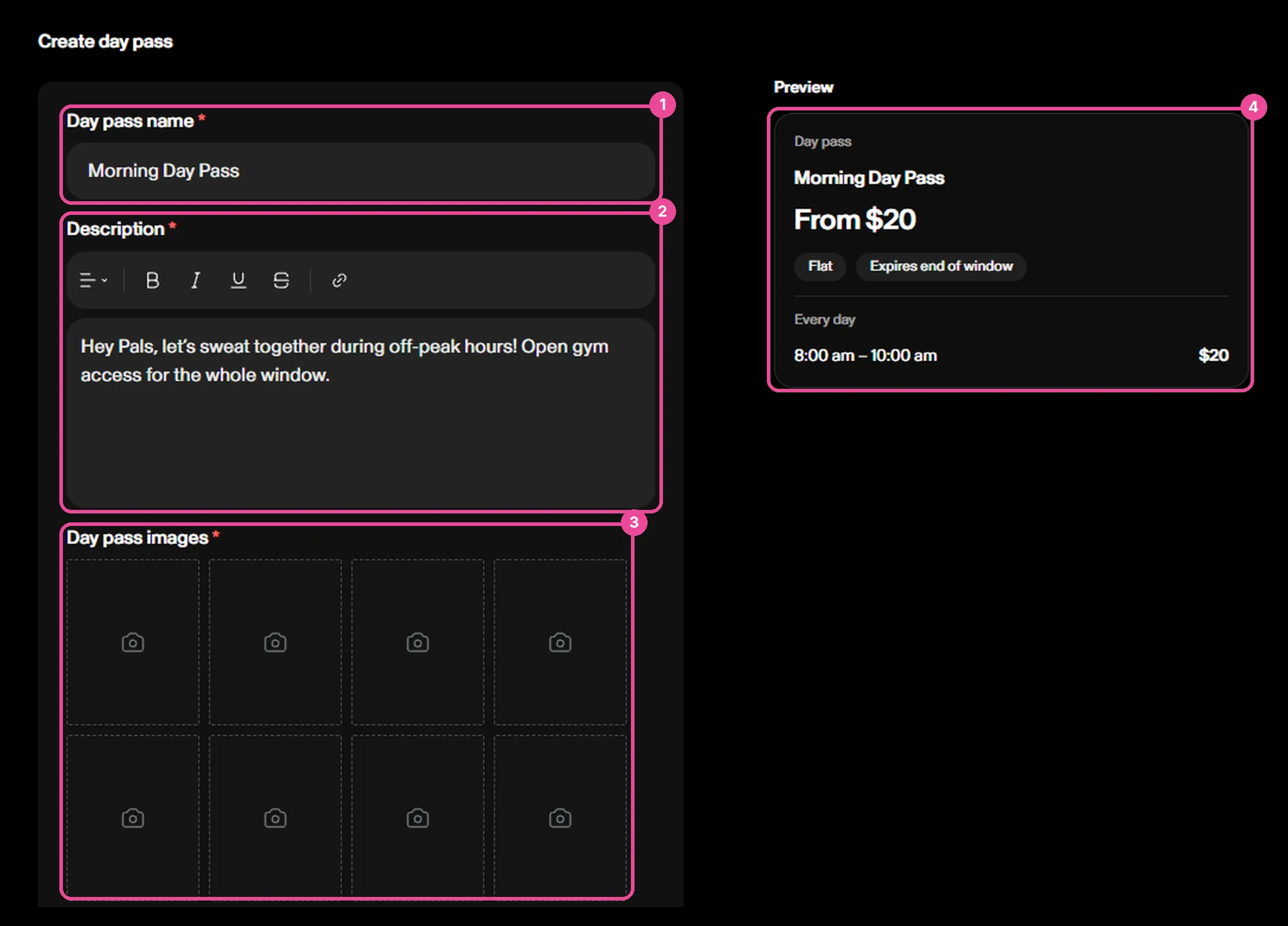
Step 1: Name, description and images
- Day pass name (required), like "Morning Day Pass".
- Description (required): what the Pal gets and who the pass is best for.
- Day pass images (required, up to 8). They come from your community page, and you can replace them or add new ones.
Step 2: Entry windows and pricing
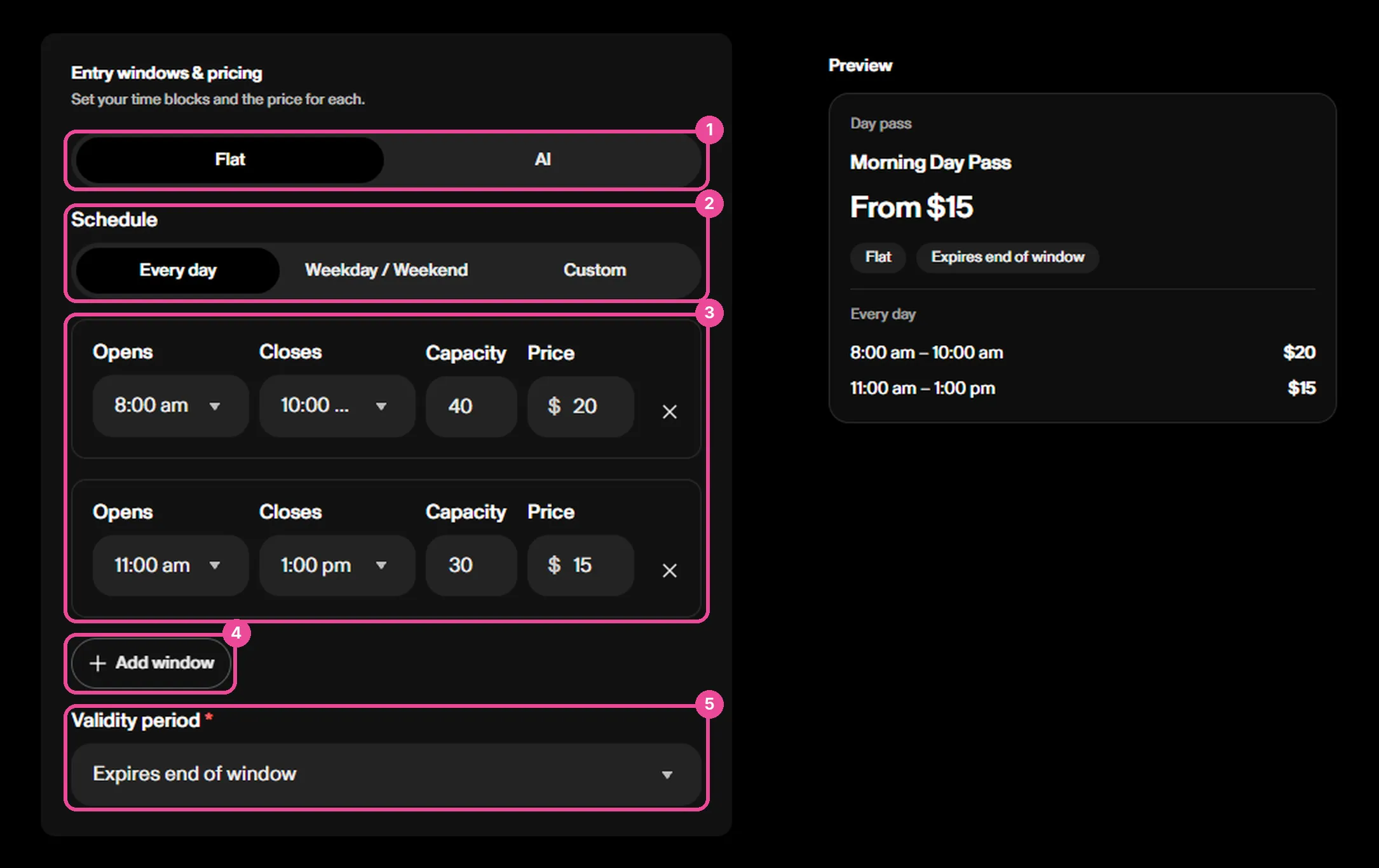
First, choose how you want to price your windows:
- Flat: you set a fixed price for each window. Pals see the lowest one, like "From $15".
- AI: you only set a Floor (lowest price) and a Ceiling (highest price), and Sweatpals sets the price of each window for you. Pals see "Floats $X to $Y". More on this in How AI pricing works below.
Then set when the pass can be used:
- Schedule: Every day, Weekday / Weekend (one set of windows for Monday to Friday and another for Saturday and Sunday) or Custom (you pick the days, and + Add day group lets other days have their own windows).
- Windows: each one has Opens, Closes, Capacity (the most passes you can sell for it) and Price. Click + Add window for more, like 6 AM to 11 AM, 11 AM to 4 PM and 4 PM to 10 PM. One window for the whole day works too.
- Validity period: when the pass expires. By default it's Expires end of window. You can also pick Expires end of week or Expires end of month.
Step 3: Access, requirements and cancellation policy
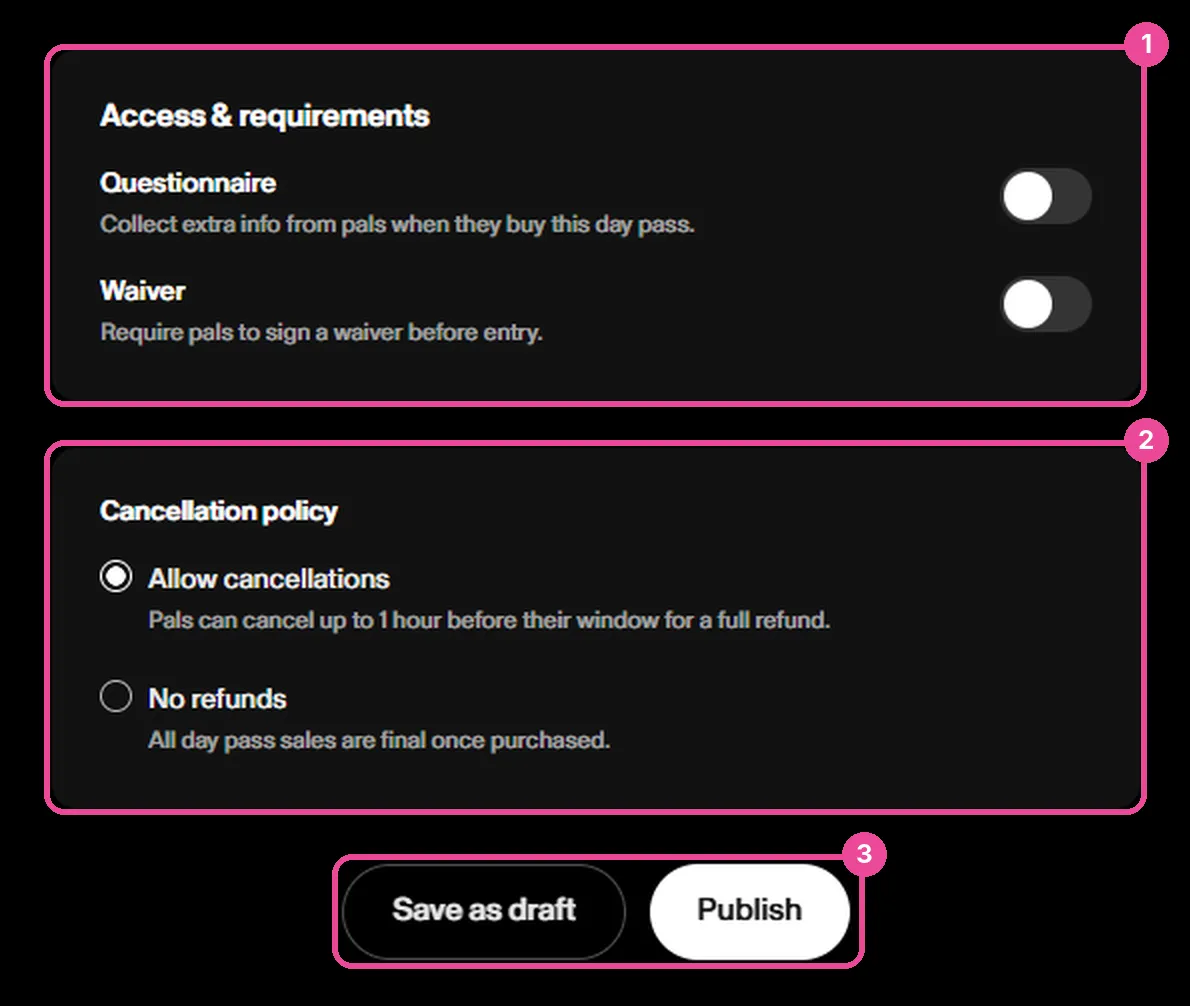
- Questionnaire: turn it on to ask Pals extra questions when they buy the pass.
- Waiver: turn it on to require a signed waiver before entry.
- Cancellation policy: Allow cancellations (full refund up to 1 hour before the window, selected by default) or No refunds (all sales are final).
Step 4: Save or publish
Click Save as draft to finish it later, or Publish to put it live. Once it's published, Pals can buy it.
How AI pricing works
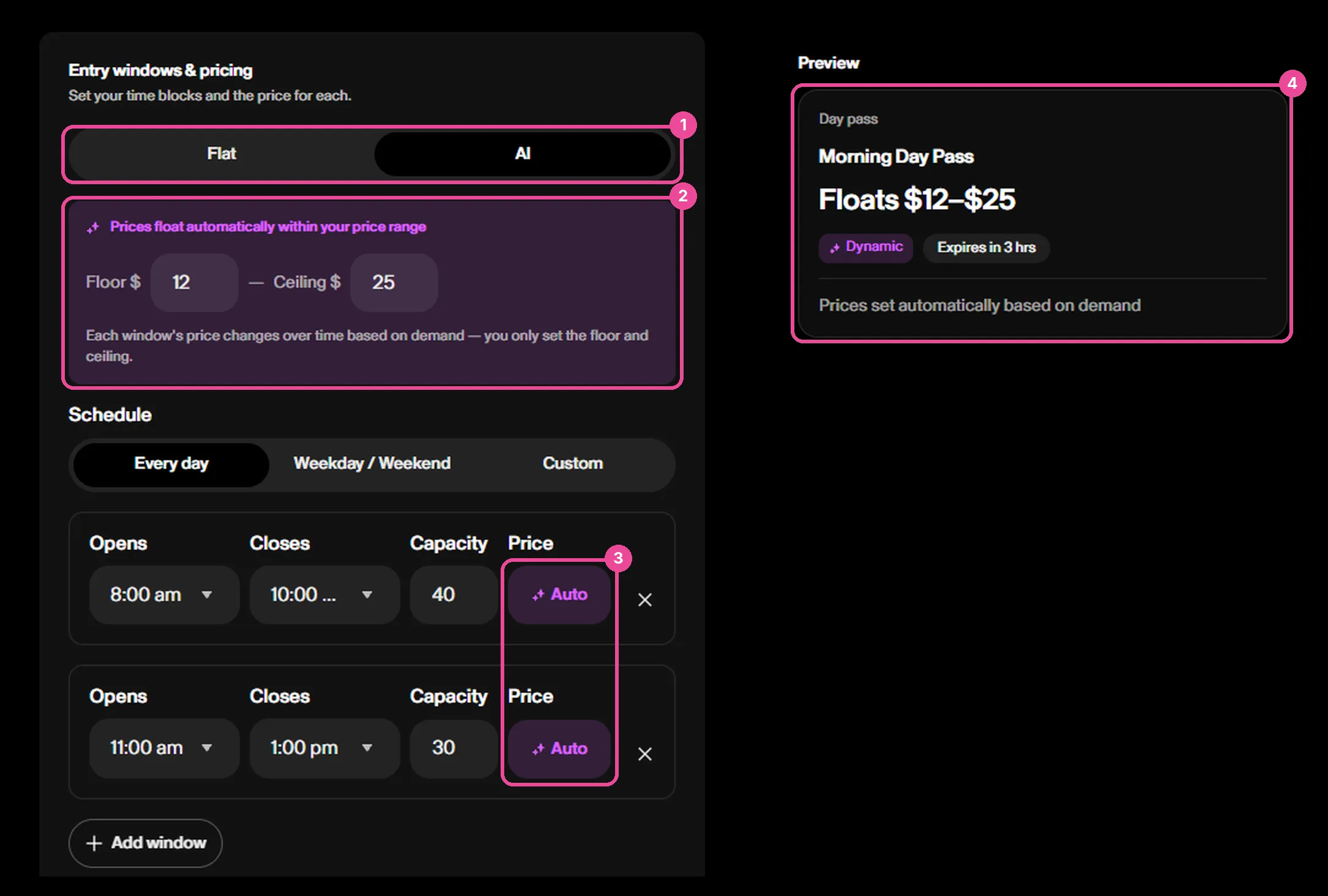
- The price always stays between the Floor and Ceiling you set.
- Quiet windows get cheaper to bring more people in. Busy windows that sell out keep the regular price.
- Prices update about every 3 hours based on your community's past demand (all your orders, not only day passes), and they move gradually.
- If your space doesn't have much sales history yet, the price stays at the Floor until there's enough data.
- The price locks when a Pal buys. It never changes after the purchase.
- Pricing only depends on demand, time and capacity, never on who the Pal is.
💡 In AI mode, the preview shows "Floats $0 to $0" until you fill in both the Floor and the Ceiling. That's expected. The preview may also say "Expires in 3 hrs". The Validity period you pick in the form is the one that applies.
What Pals see
- Finding it: day passes show on your community page (in the app, under Passes) and on the day pass page, with photos, details and a window picker.
- Buying: they pick a date and a window, pay, and see a "You're in" screen.
- The pass: a QR code with your space, the date, the window and the "enter by" time. It's under Passes in the app and in their web account, and they can add it to Apple Wallet.
One pass is one entry, so Pals can't use the same pass twice. Times always show in your space's timezone.
Check-in at the front desk
Scan the day pass QR with the regular Check-in scanner, the same way you scan an event ticket.
Pass status | What it means | When you scan it |
|---|---|---|
Active | Bought, not used yet | Checks the Pal in (with a warning if they're outside their window) |
Used | Already checked in | Shows "Already checked in" |
Expired | The validity period ended before check-in | Shows "Pass expired" |
- On time: the Pal is checked in and the pass becomes Used.
- Late: the scanner shows a warning but doesn't block entry. You decide whether to let them in or charge the difference through Point of Sale.
- In a cheaper window than the one they paid for: there's no refund of the difference.
Managing passes and orders
- Plans: click the Day passes card at the top to see only your day passes.
- Transactions: day pass orders show up with full order details and the same actions as event tickets, like viewing the order or refunding it.
Pals can't cancel a pass themselves in the app yet. With Allow cancellations, you refund them from Transactions like any other order.
FAQ
Can I charge less in the morning and more in the evening? Yes. Create separate windows with Flat pricing and a different price for each, or use AI pricing and let the price drop in quiet hours.
Will AI pricing ever charge more than I want? No. It always stays between your Floor and Ceiling.
Why is my AI price stuck at the lowest amount? Your space doesn't have enough sales history yet. The price starts moving once there's enough demand data.
How do I limit how many people come? Set the Capacity on each window. When a window is full, it stops selling.
Why did two Pals pay different prices for the same window? With AI pricing, the price changes over time with demand. Each Pal pays the price shown when they bought.
Can a Pal use one pass twice in a day? No. One pass is one entry.
Can day passes be included in a membership or class pack? Not yet. Right now they're sold on their own, for open gym or space access (not for classes or events). Multi-day or multi-visit passes and Google Wallet aren't available yet either.