🛍️ 2.5 Experience Add-ons
Add-ons are optional extras you can offer with your events, classes and appointments, like a mat rental, a towel, a smoothie or a massage upgrade. Pals buy them in the same checkout as their ticket, so there's no separate transaction and no extra ticket tier to set up. This article covers how to create add-ons, how Pals buy them, how to sell them at the front desk and what happens with payments and refunds.
Add-ons are available on web and in the mobile app. For appointments, Pals can only add them when booking in the app for now.
What you can do with add-ons
- Earn more per booking without creating extra ticket types
- Sell products or services right where people are already paying
- Track inventory automatically, so you never sell more than you have
- See who bought what on each experience
Adding add-ons to an event or class
- Open the experience and click Edit (or start a new one).
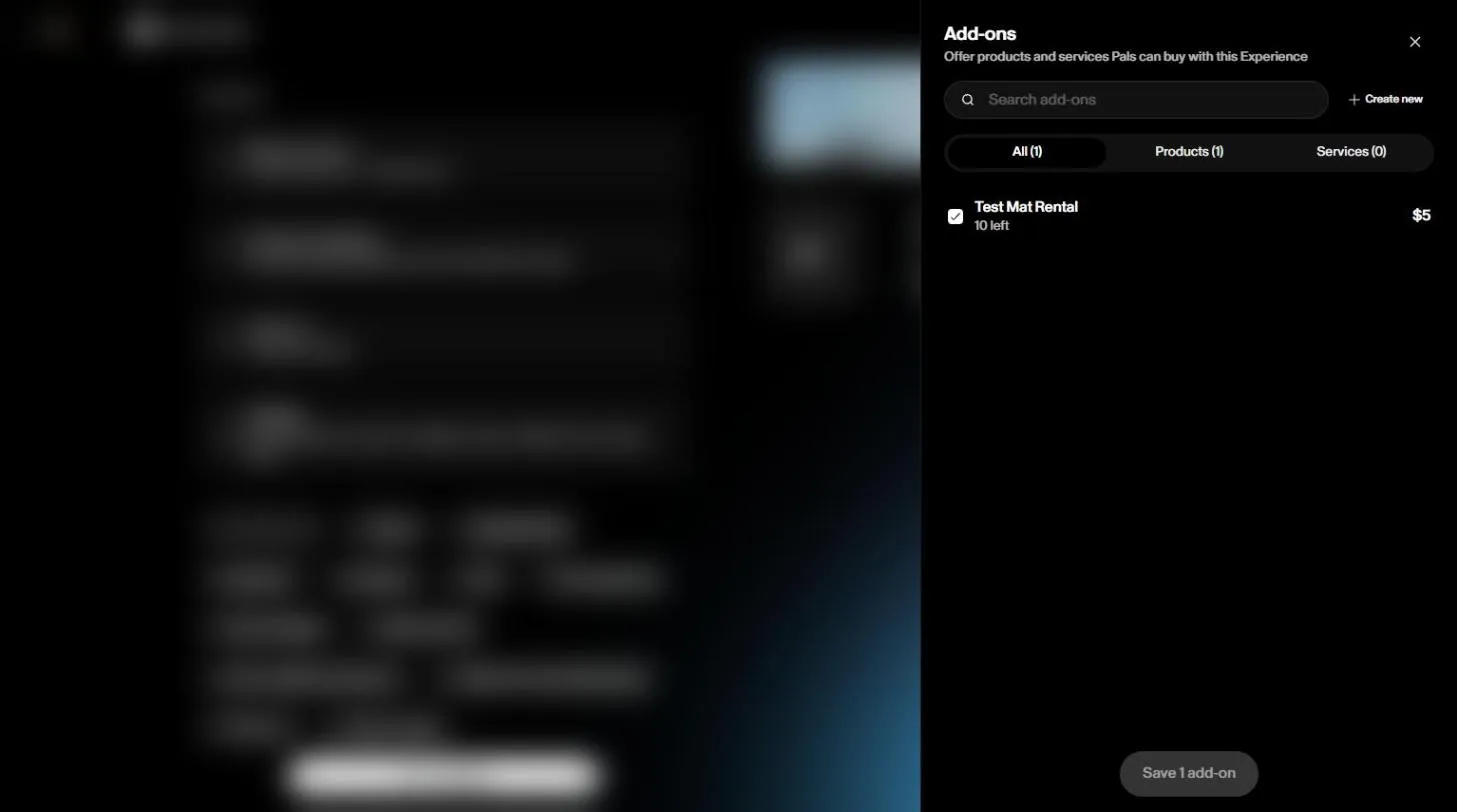
- Below Sections, click + Add-ons.
- In the Add-ons panel, check the add-ons you want to offer. You can search, or filter by Products and Services.
- Don't have one yet? Click Create new (see the next section).
- Click Save, then Save changes on the experience.
The Add-ons section now shows on your experience with the items you picked. Add-ons apply to every ticket tier of the experience. You can't limit an add-on to a specific tier yet.
Creating an add-on
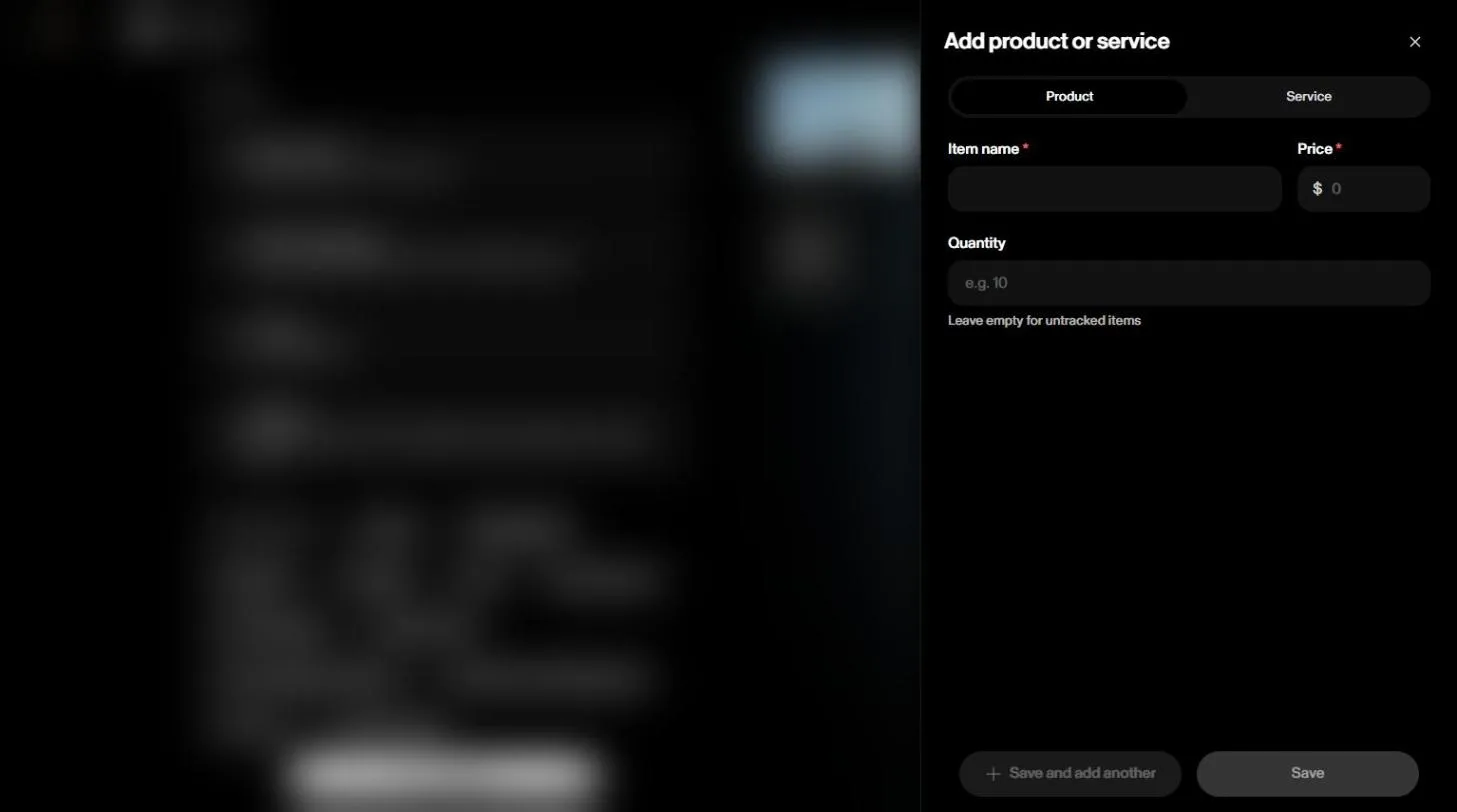
When you click Create new, the Add product or service panel opens.
- Choose Product (like a mat rental or a drink) or Service (like a massage or a stretch session).
- Fill in:
- Item name (required)
- Price (required). Free add-ons are supported
- Quantity (optional), per session. Leave it empty for items you don't need to track
- For a Service, you can also set the Duration in minutes and choose the Service providers who can deliver it. On appointments, the duration is added to the booking time, and only those providers can offer it.
- Click Save, or Save and add another to create more in a row.
New add-ons go to your catalog, so you can reuse them on any experience. Editing an add-on updates it everywhere it's attached, and add-ons people already bought are not affected. For items with sizes, like t-shirts, create one add-on per size. To edit an add-on later, go to Point of Sale, search for it and click the pencil icon next to its name.
Adding add-ons to appointments
- Open the appointment type, or create a new one.
- Below Sections, click + Available Add-ons.
- In Attach add-ons, check the ones Pals can add when they book in the Sweatpals app, or click Create New.
- Click Save.
How Pals buy add-ons
- The Pal opens your experience and taps Book, choosing a date first if it runs on more than one.
- They add tickets with the + button.
- Each ticket expands to show an Add-ons for ticket N group. If someone buys 3 tickets, each ticket gets its own group, so everyone can pick their own extras.
- They add the extras they want. The total at the bottom updates as they go.
- At checkout, tickets and add-ons show as separate line items, each one tied to its ticket.
Add-ons work on paid, free and donation events. They show up on the Pal's confirmation screen, confirmation email and booking details.
Keep in mind that:
- Add-ons are always optional. Pals can leave them at zero.
- Sold-out add-ons don't show up at checkout. If one sells out while a Pal is paying, they see a message and it's removed from their order.
- Memberships and class packs never cover add-ons. They only cover the ticket. The ticket shows as covered, and the Pal pays only for the add-ons.
- Pals can't change their add-ons after checkout. If they forgot something, you can sell it to them yourself (see below).
Seeing who bought add-ons
On the experience page, the RSVPs and Check-in tabs show which add-ons each Pal bought, on desktop and mobile. The Add-ons panel also shows how many of each add-on are left.
Selling add-ons after booking
If a Pal already booked and wants to add something:
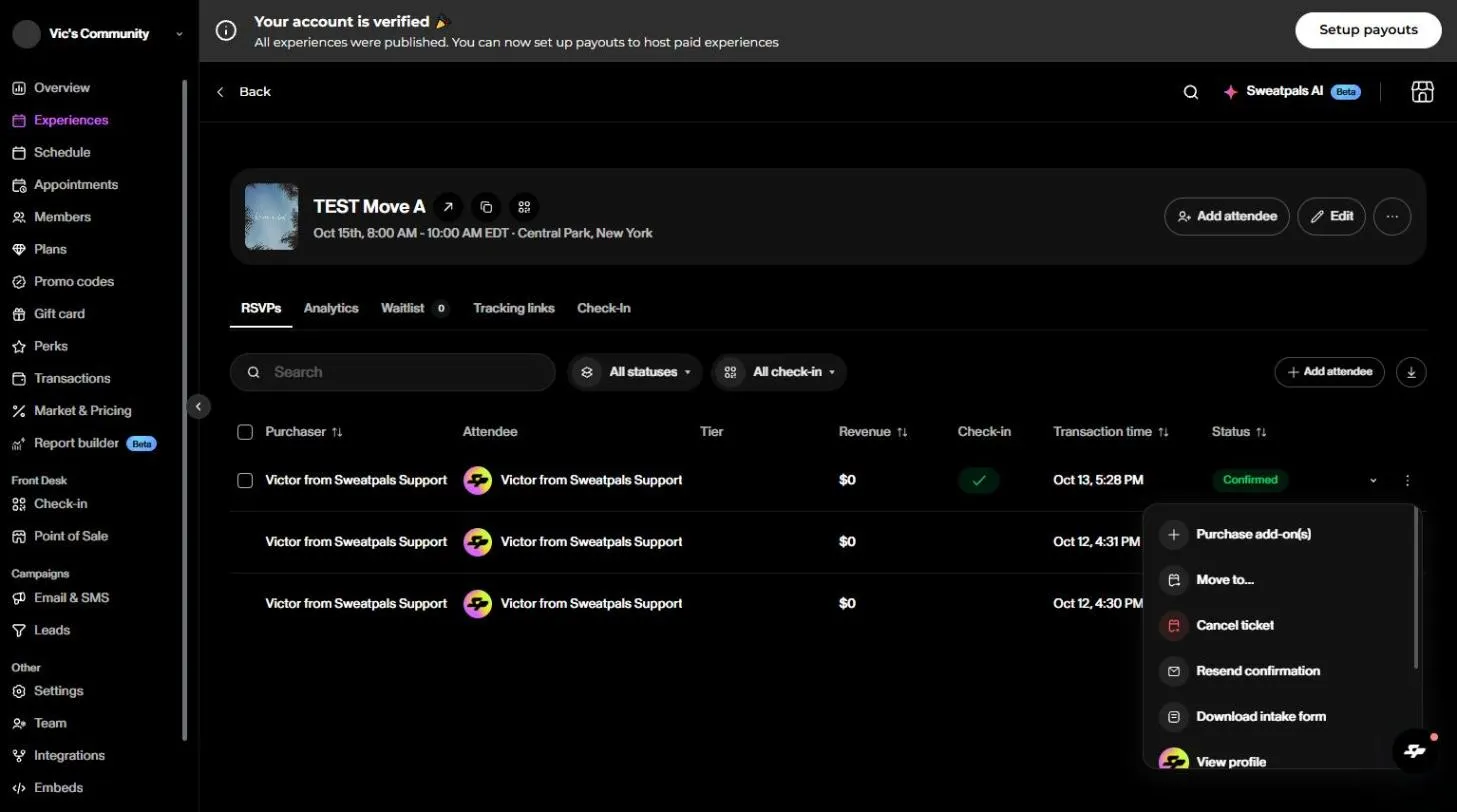
- Open the experience and go to the RSVPs tab.
- Click the ⋮ menu on the Pal's row.
- Choose Purchase add-on(s).
- Under Available add-ons, click + next to what they want and complete the purchase.
You can also sell add-ons on their own at the front desk with Point of Sale. See 6.5 Point of Sale (POS) on Desktop.
Promo codes only apply to the ticket price. They don't discount add-ons, and add-ons don't count toward a code's minimum purchase. At the front desk, a manual discount, like 50% off, applies to the whole order, add-ons included.
Reaching Pals who bought add-ons
When you create an email or SMS campaign, choose Custom audience, click Add segment and pick Add-ons. Then choose the event or appointment and the add-on, and the campaign goes to the Pals who bought it.
Payments, payouts and taxes
- Add-ons are charged together with the experience in one payment, in your currency.
- Inventory goes down only when the payment goes through.
- Your payouts include add-on revenue, minus the standard Sweatpals fee.
- If you have sales tax set up, it applies to add-ons too. See 6.7 Sales Tax Integration.
Cancellations and refunds
When a booking is cancelled, its add-ons are cancelled too. They are refunded following the experience's refund policy, and the quantity goes back to the pool.
To learn more, see 2.1 Creating Events, 3.6 1:1 Appointments, 6.5 Point of Sale (POS) on Desktop and 7.1 Email & SMS Campaigns.